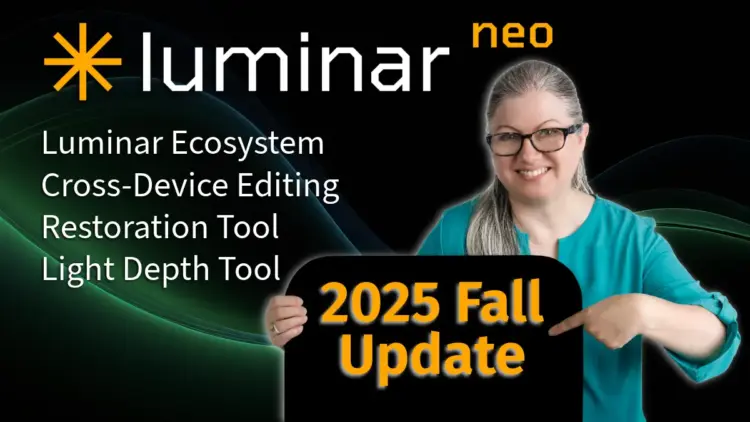
Luminar Neo’s Fall 2025 update brings powerful new tools and features designed to elevate your photo editing workflow—faster, smarter, and more connected than ever. From one-click photo restoration to the all-new Light Depth tool for precise relighting, this release enhances both creativity and convenience. Plus, Skylum introduces Luminar Spaces for online photo sharing, a revamped AI Assistant, and the long-awaited Luminar Ecosystem, which connects desktop and mobile editing. In this walkthrough, I’ll explore each of these updates, answer your burning questions, and show you how to make the most of the new capabilities inside Luminar Neo.
What’s new in Luminar Neo’s Fall 2025 update?
The update introduces several powerful tools and features: the new Light Depth tool for advanced relighting, a Restoration tool for repairing old or damaged photos, Luminar Spaces for creating shareable online galleries, and the long-awaited Luminar Ecosystem for syncing edits between mobile and desktop. A new AI Assistant is also on the way.
Luminar Neo Training Course
If you want to master all these tools, check out Luminar Neo: The Complete Course. It walks through every feature step-by-step, includes RAW files to follow along, and comes with bonus overlays, skies, and a keyboard shortcut cheat sheet.
What is the new Light Depth tool, and how is it different from Relight AI?
Light Depth replaces or supplements the older Relight AI by offering much finer control over how light falls across your image. Unlike the old tool, which only adjusted lighting from the front or back, Light Depth lets you target lighting on specific areas, such as your subject, without affecting the foreground or background unintentionally. You can also adjust light depth, temperature, and brightness independently for near and far areas. While still in beta, it’s already a standout upgrade.
Can I rotate the light direction with Light Depth?
Not yet. The current version doesn’t allow for diagonal or rotated lighting, but this may be added in future updates as the tool develops.
What is the new Restoration tool in Luminar Neo?
The Restoration tool lets you repair old, damaged, or faded photos in just one click. It’s located under the Enhancement Tools in the Catalog module. You can choose from three restoration modes: Full Restoration, Color Only, or Scratches. The tool automatically processes and saves the result in a new Restoration folder.
How well does the Restoration tool perform?
It performs impressively well, even on severely damaged images, completing a full restoration in about 30 seconds. Results vary depending on the photo, but color enhancement, scratch repair, and missing piece recovery are generally very effective. Manual touch-up may still be needed in some cases, especially with group portraits.
I did a 45 minute photo restoration tutorial called “A Six Step Guide to Fabulous Photos” using Luminar Neo from 2023 when the software was fairly new, but this brings some obvious advantages.
I’ll be putting the new Restoration tool through it’s paces along with our DPM photography community which has a growing number of photo retouching enthusiasts discussing it more and more, and release some new retouching tutorials in the near future.
Does the Restoration tool support black and white photos?
Yes. Even if the tool colorizes a restored image, you can easily convert it back to black and white afterward if you prefer.
What is Luminar Spaces?
Luminar Spaces lets you create and publish online photo galleries directly from Luminar Neo. Think of it like an album you can share via a link. Galleries open in a sleek web viewer, and you can control visibility, metadata, and download options. It’s ideal for photographers who don’t have a website or want an easy sharing method.
How do I create a Space?
You create a Space from within Luminar Neo by choosing images in your catalog, adding them to a new Space in the Spaces section, and then using the publish/share option to generate the online gallery.
How do I publish photos to a Space?
After creating a Space, you select the photos you want included, confirm the basic settings, and click the publish button, which uploads those images to Luminar’s servers and creates a shareable gallery link.
How do I share my Space with others?
Once the Space is published, Neo provides a URL that you can copy and send by email, message, or social media so others can open the gallery in their browser.
Where do I find Spaces in Luminar Neo?
Spaces appears in the left-hand panel of the Catalog view under sections like Folders and Albums, where you can see and manage each Space you’ve created.
Do I need to pay extra for Spaces?
Spaces is part of the broader Fall 2025 update, which is included for active subscribers, while some perpetual license owners may need to pay for the new upgrade depending on when they purchased Neo.
Can I customize Luminar Spaces layouts?
Currently, layout customization is limited. The default design uses square thumbnails on a black background. More personalization options may come in future updates.
What is the Luminar AI Assistant?
This upcoming feature will provide in-app help by answering questions directly inside Luminar Neo. While details are limited, it aims to enhance usability and streamline your workflow with AI-powered assistance.
What is the Luminar Ecosystem?
The Ecosystem allows cross-platform editing by syncing images and edits from Luminar Mobile to Luminar Desktop. Your changes, including filters and adjustments, carry over. As of now, the sync works only from mobile to desktop, not the other way around.
Is cloud storage included in the Luminar Ecosystem?
No. The system doesn’t offer cloud-based editing or storage. It simply syncs your mobile edits to your desktop via Spaces.
Does the Ecosystem include any new editing tools?
No. It enhances sharing and syncing but doesn’t introduce new editing features. Editing continues to be done within Luminar Neo itself.
Do I need to pay for the Fall 2025 update or the Ecosystem features?
If you have an active subscription that is set to auto-renew, you’ll receive all updates, including the Ecosystem, automatically at no extra cost.
Can I reactivate a canceled subscription to regain updates?
No. Skylum has ended new subscriptions. Existing subscribers retain access only if their subscription renews automatically.
What if I have a lifetime license for Luminar Neo?
If you purchased after June 2025, the Fall update is free. If you purchased before then, you’ll need to pay to upgrade.
Is there a storage limit for Luminar Spaces?
Currently, there are no storage limits or extra fees associated with Luminar Spaces.
Will the Ecosystem affect Luminar Neo’s compatibility with Adobe plug-ins?
No. You can still use Luminar Neo as a plug-in for Adobe software without interference from the Ecosystem.
What are my options if I’m new to Luminar Neo?
You can choose from:
- Desktop Perpetual License – $99 USD
- Cross-Device Platform License – includes the Ecosystem
- Full Package – includes the Ecosystem + a 1-year Creative Asset Library subscription
Use code DPM10 for 10% off any plan. (affiliate link)
What are upgrade costs for current users?
If you already own Luminar Neo (pre-June 2025), upgrade pricing starts at $49. To include the Ecosystem, the upgrade costs $69. Discounts are available for legacy Luminar 3, 4, or AI users.
That was a lot to cover!
I hope all your questions were answered and that you enjoyed this overview of Luminar Neo’s fall update. If you have more questions, leave them in the comments, and I’ll find out for you.
Until next time, take care, keep practicing your photo editing, and remember to subscribe!
